01
Upload your GIF
Choose an animated GIF from your device.
Remove the background from your GIF. Keep the animation. Make it your own.
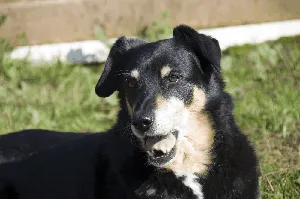 Original
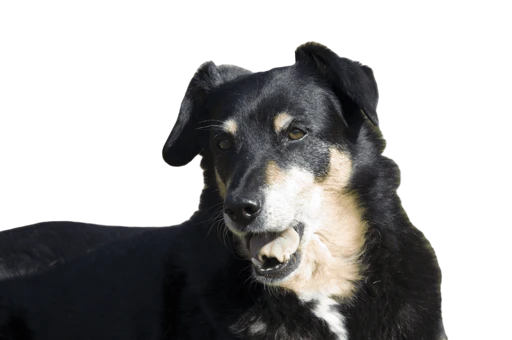 Loading animation…Result
Real animated GIF · actual background removal
or choose a file to get started
No GIF ready? Try an example
Remove the background without losing frames.
Get a clean GIF, WebP or APNG.
Describe a new scene behind your moving GIF.
Choose an animated GIF from your device.
See the credit cost on the button. Click once to remove the background.
Download your transparent GIF or keep creating in the workspace.
Remove the original background, then describe the scene you want. ImgPilot creates a new background behind your moving GIF. Preview it before you use it.
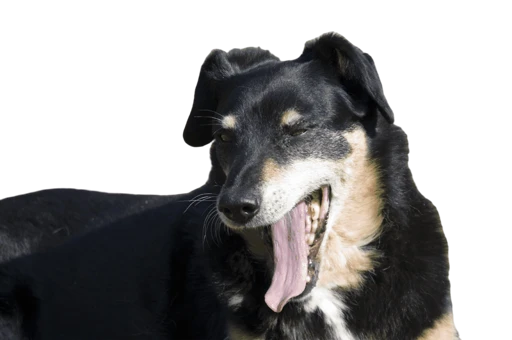
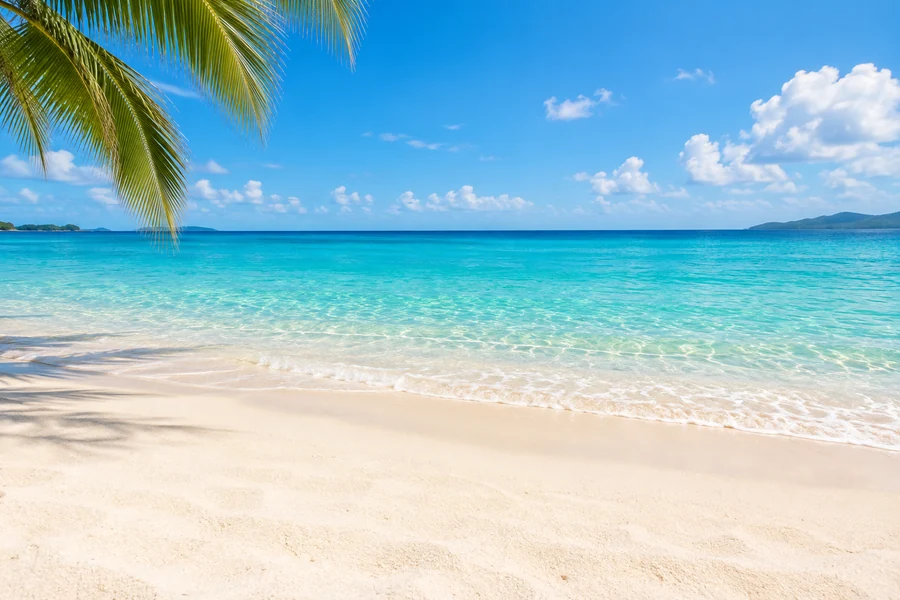 AI background
A transparent GIF separates the subject from its surroundings, so the same animation can work on a different page, scene or canvas.
An animated GIF contains a sequence of frames. Removing the background from just one image cannot produce a moving cutout. ImgPilot processes the full animation and checks its frame timing and looping before delivering the result. Preview the real dog example above to see the cutout in motion.
Choose a GIFA white rectangle remains visible when you place a GIF on a colored page. Remove the background to expose the canvas behind the subject instead. Check your cutout against both light and dark backgrounds: fine fur, motion blur and similar foreground and background colors can affect the result. WebP and APNG can retain soft alpha edges.
Choose a GIFOne cutout. More ways to create.
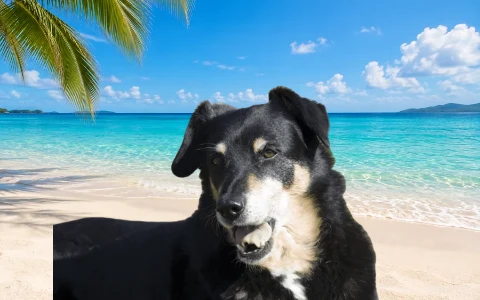
Place your GIF over a color, gradient, or your own image.
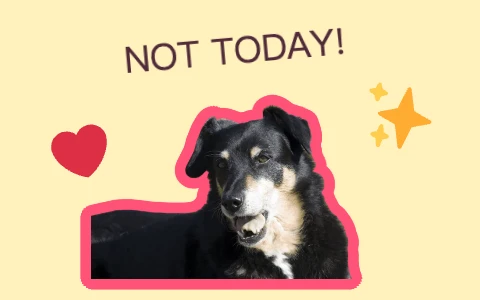
Mix bold outlines, stickers and text into an animated reaction.
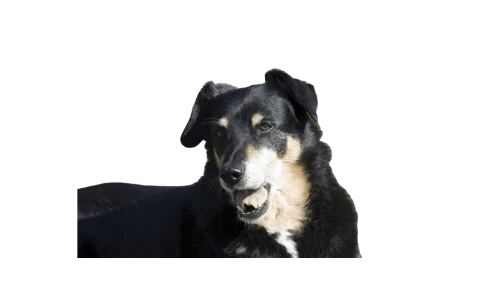
Adjust the canvas and subject to make the animation your own.
Create a reusable animated asset, then adapt the background, text and canvas to where it will appear. Check the destination’s format and file-size requirements before sharing.
Give a familiar reaction its own caption. A cutout keeps the expression at the center of a reply or social composition, without the original room or scenery.
Add an outline, a shadow or text to your moving subject. Adjust its scale and position to build a sticker-style asset with room around the edges.
Place a transparent animation over your layout instead of a solid rectangular image. Use an export format supported by your browser, slide software or publishing platform.
Replace a distracting setting with a color, gradient or your own image. Combine an animated subject with a headline to explore a campaign or announcement.
Open the workspace, choose a local GIF or try a prepared example. Sign in when you request paid processing.
The removal button shows its credit cost. Click once to start. AI background generation shows a separate cost.
Use the transparent animation as the starting point for several designs, without repeating removal for each edit.
Change backgrounds, add text or image stickers, and control the subject’s position, size and rotation.
Play or pause your animation and check the edges before choosing an export format.
Ordinary editing and exports reuse your cutout. They do not consume additional AI removal credits.
The export format changes how transparency and color are represented. Choose for the destination, not just the file extension.
| Format | Transparency | When to choose it |
|---|---|---|
| GIF | Transparent or opaque pixels | A familiar animation format with limited colors. Useful when your destination requires GIF; soft edges may look harder. |
| Animated WebP | Soft alpha transparency | Useful for web animations and detailed edges. Verify support in the app where you will upload it; file size depends on the content. |
| APNG | Soft alpha transparency | Full-color animation for destinations that accept APNG. It can produce larger files, so compare exports for your use case. |
Changing the extension alone does not remove a background. Export a processed cutout, and preview it on the background where you plan to use it.
Choose a subject that stands apart from its background. Heavy motion blur, overlapping subjects and very small details can make separation harder. Start with the clearest source available and inspect several frames after processing.
If a large GIF cannot be processed, try reducing its dimensions or length.
Choose your animated GIF and open the workspace. The button shows the credit cost; sign in if needed, then click once to start processing. Preview the transparent result, make edits, then download GIF, animated WebP or APNG.
New accounts receive free starter credits that can be used toward GIF background removal. Processing uses credits, and the button shows the cost before you click. If your balance is insufficient, you can purchase more credits. Prepared examples, ordinary editing and exports do not use additional AI removal credits; AI-generated backgrounds show a separate cost.
No account is needed to choose a file and prepare a local draft. Your selected file stays on your device until you request processing. Sign in at the paid processing step.
The full animation is processed, and timing and looping are validated before delivery. Play the preview to check the result. Background removal can still produce visual artifacts, especially around blurred edges.
Yes, you can submit a GIF with a white or other solid background. The tool separates the subject rather than simply making every white pixel transparent. Results depend on how clearly the subject can be distinguished from its surroundings.
Input must be an animated GIF, up to 20 MB, 15 seconds and 2048 pixels on each side. Very large animations may need to be shortened or resized. Use the image background remover for a still photo.
GIF supports only fully transparent or opaque pixels, and a limited color palette. Animated WebP and APNG preserve soft alpha transparency, which can work better for fur, shadows or semi-transparent edges. Always check support at your destination.
Yes. Reuse the transparent cutout with a color, gradient or uploaded image. Add text, image stickers, an outline, shadow or glow, then adjust the canvas. AI background generation is optional and has a separate credit cost.
Not necessarily. Size depends on the subject, number of frames, dimensions and format. You can set a target size when exporting, but it is not guaranteed. The editor reports when that target cannot be reached while preserving dimensions and timing.
Before processing, the draft is stored locally in your browser when storage is available. Processing uploads the source to ImgPilot’s cloud storage and sends it to the processing service. Finished GIFs follow your account’s retention rules and can be deleted from History; a local draft is not a permanent backup.
Try a real example, or bring your own animation.
Choose a GIF“Yawn” © SecretDisc · CC BY-SA 3.0. Backgrounds removed with Replicate; resized previews and edited derivatives retain the respective source license. Beach background generated for ImgPilot. Twemoji · CC BY 4.0.