AI Image Editor with Prompt
Upload a picture and type the change in plain words: a new setting for a product, new words on a poster, a different person or another place.
Start with your image
Upload a photo, poster or product shot, then say what to change.
What can one sentence change in a picture?
Real results, each from one typed prompt. Drag across the picture to compare.
What is an AI image editor with prompt?
An AI image editor with prompt changes an existing image from a plain instruction. You upload the picture, type the result you want, and the model returns a new version. There are no layers to manage, no selections to draw and no software to learn.
That makes it different from an AI image generator, which starts from nothing. An AI image editor starts from your picture and keeps what you didn’t ask to change, so a product stays that product and a poster keeps its layout. ImgPilot runs in your browser, in a chat you can keep going until the image is right.
What can you change in a photo with a prompt?
If you can describe it, you can ask for it. These are the requests people make most, with wording you can copy.
Before 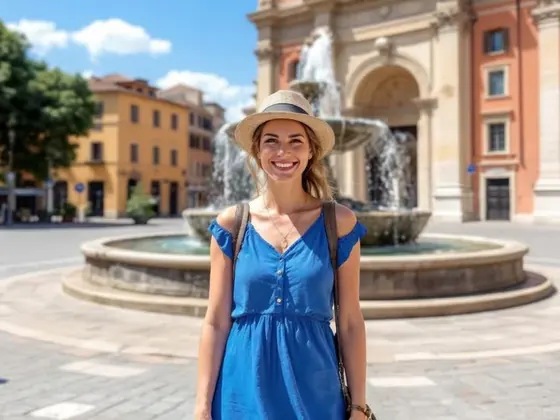
After Remove unwanted objects
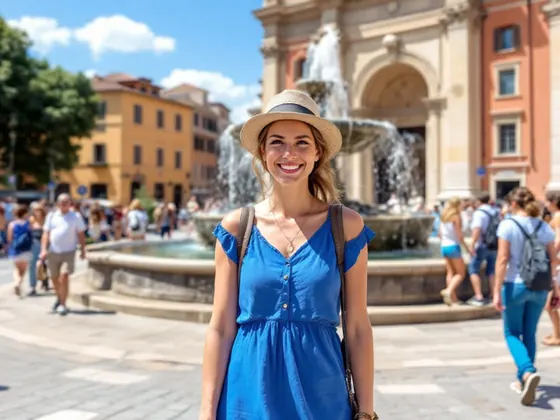
Clear a stranger, a sign or a stray cable out of the frame and let the AI fill in what was behind it.
Remove the people in the background
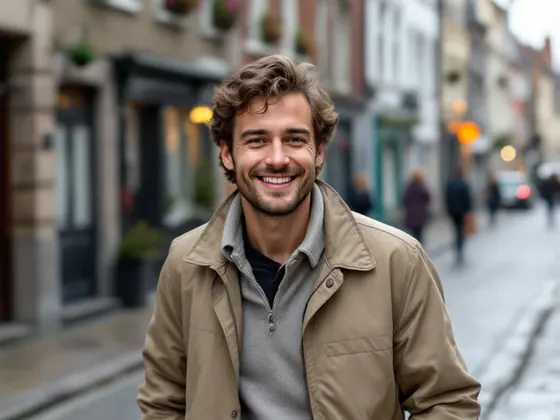
Before 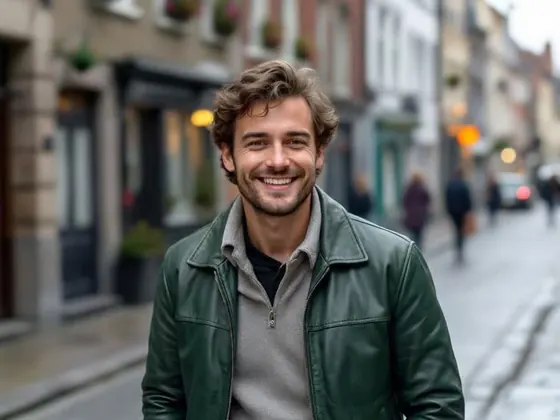
After Change clothing and colors
Try a garment in another color or swap an outfit completely without reshooting.
Change the jacket to dark green leather
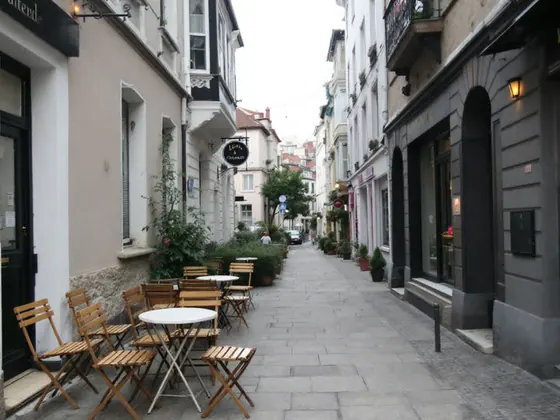
Before 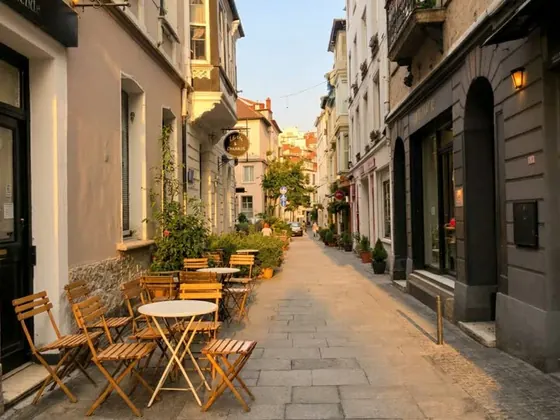
After Fix light and mood
Turn a flat, overcast shot into golden hour, or brighten a dim room while the subject stays the same.
Make it look like late afternoon sun
Before 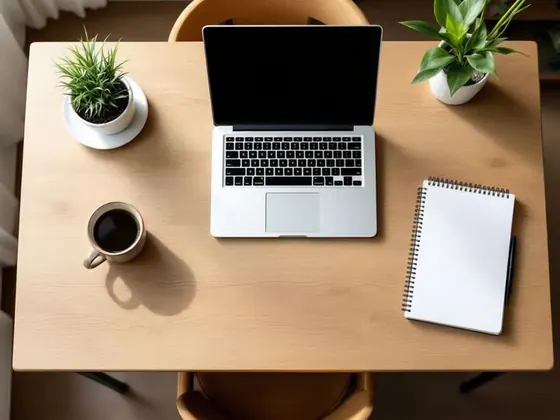
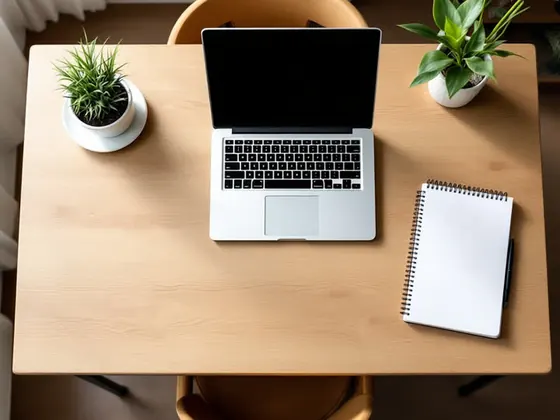
After Add something new
Place an object into the scene with lighting and shadows that match the rest of the picture.
Add a coffee cup on the table
Before 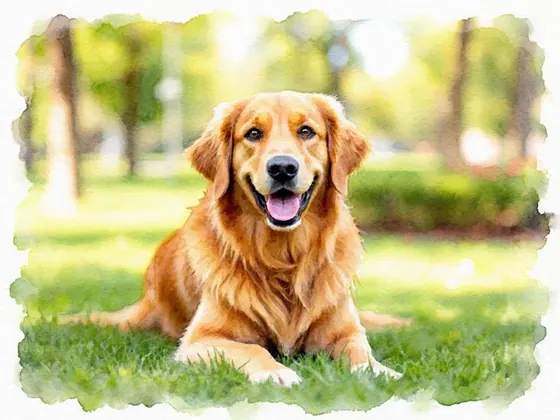
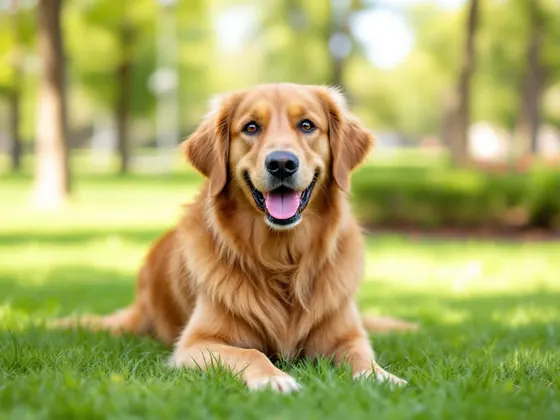
After Try a different style
Keep the composition and turn a photo into an illustration, a film still or a watercolor.
Make this a watercolor painting
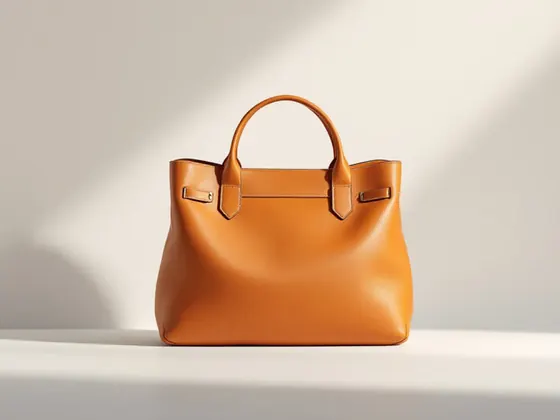
Image 1 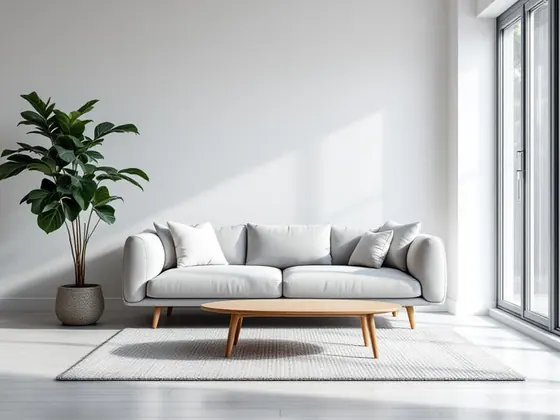
Image 2 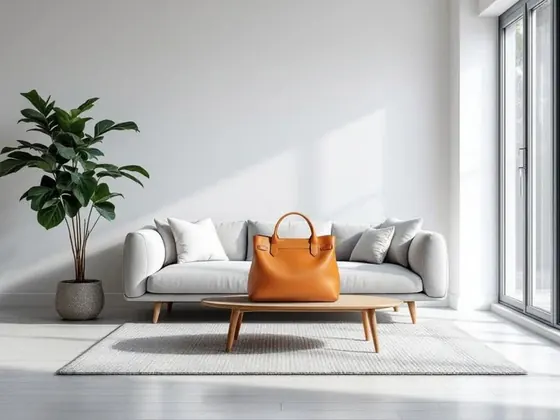
After Combine images
Attach more than one picture and say how they fit together, such as a product placed into your own scene.
Put the bag from image 1 in the room from image 2
How do you edit an image with a prompt?
Upload your image
Add a JPG, PNG, WebP or GIF up to 10 MB. It appears next to the message box.
Say what to change
Write it the way you would tell a designer. The credit cost shows beside the send button before you commit.
Keep editing the result
Choose Continue editing on any result and ask for the next change. Download the version you like.
How do you write an edit prompt that works?
You don’t need prompt syntax. Clear sentences get better results than long lists of keywords.
- Name the thing and the change
- “Change the sofa to dark green” works better than “make it nicer”.
- Say what must stay
- Add “keep the face and the pose the same” when those details matter most.
- Put exact words in quotes
- For text edits, write the wording exactly. Short lines come out most reliably, so check spelling in the result.
- Make one change at a time
- Get the background right, then continue from that result for the next edit. Each step builds on the last.
Who edits images with a prompt?
Anyone who needs a different picture and doesn’t have the time, the budget or the skills for a reshoot.
- Online sellers
- Turn one packshot into seasonal scenes and lifestyle images for listings and ads.
- Social media creators
- Change a location, an outfit or a mood to get more posts out of the photos you already have.
- Marketers and small teams
- Update a date, an offer or a headline on existing artwork without reopening the design file.
- Everyday users
- Clean up a holiday photo or try an idea by typing it, with no editing skills needed.
Why edit with a prompt instead of layers?
Describe it instead of masking it
You say what should change. The model works out where it is and how it should blend in.
Compare up to three models
The same instruction can run on several models at once, so you can keep the result you like best.
Keep going from any result
Every edit stays in the conversation. Continue from the version you prefer rather than starting over.
AI image editor with prompt FAQ
What can I change with a prompt?
Backgrounds and scenery, objects, clothing, people, colors, lighting and text inside the picture. Describe the change in one sentence, and ImgPilot's AI image editor returns an edited version of your image.
Do I need an account?
Yes. Editing runs on credits, so you need to sign in before uploading. New accounts receive starter credits, and the cost of each edit is shown before you send it.
Which file types can I upload?
JPG, PNG, WebP and GIF files up to 10 MB each.
Can I edit photos with AI more than once?
Yes. Choose Continue editing on a result and describe the next change. Your conversation keeps every version, so you can go back to an earlier one and take a different direction.
Can I try several models on the same edit?
Yes. Select up to three models in the model menu at the top left and send one instruction. The selected models run side by side, so you can keep the best result.
Why was my edit blocked?
Every request goes through a safety check. If it doesn’t pass, the image isn’t made and your credits are returned. Editing a real person’s photo should always be done with their permission.
Can I ask questions about an image here?
No. ImgPilot's AI image editor edits and creates images. ImgPilot's AI image editor doesn’t analyze a picture or answer questions about a picture.
Is this AI image editor with prompt free?
New accounts receive starter credits, so you can try it before paying. After that, edits use credits from a credit pack or a subscription. The cost appears before you send, and credits are returned if an edit fails.
Do I need to install anything?
No. ImgPilot's AI image editor runs online in your browser on desktop or mobile.
What’s the difference between editing with a prompt and an AI image generator?
An AI image generator creates a picture from a description alone. Editing with a prompt changes the picture you upload and keeps the parts you didn’t mention. ImgPilot's AI image editor can do both: send a prompt without an image and the editor creates a new picture.
How accurate are text edits?
Short headlines and offers usually come out cleanly. Long passages and very small type are harder, so check the spelling and run the edit again if a letter is wrong.
Can I edit several images together?
Yes. Attach more than one image and say how they should combine. The number of images you can attach depends on the model you select.
When does editing with a prompt not work well?
Clear, visible changes work best, such as a new background, a new outfit or a new headline. Pixel-exact retouching, exact colors or sizes, long paragraphs of text and very small details are harder, because each edit redraws the image and fine details can shift. For a transparent background, use ImgPilot's Background Remover. For a precise text change, use ImgPilot's Edit Text in Image tool.
Other ways to fix an image
Some jobs have a tool built for exactly that.