How to turn a photo into a video with AI

To turn a photo into a video with AI, upload it as the first frame and describe the motion, not the picture: what moves, what the camera does and what must stay the same. Ask for one main motion, test at 480p for 4 seconds, then change one thing at a time. Results differ on every run.

  • Real clips with their exact prompts
  • Failed tests included
  • Clips from 4 to 15 seconds
  • Credit cost shown before you generate
  • Updated November 2, 2026
Try it now

The same photo, two prompts

Press play on both. This was the clearest difference in our tests: one small action held together, while a pile of actions turned into a different shot.

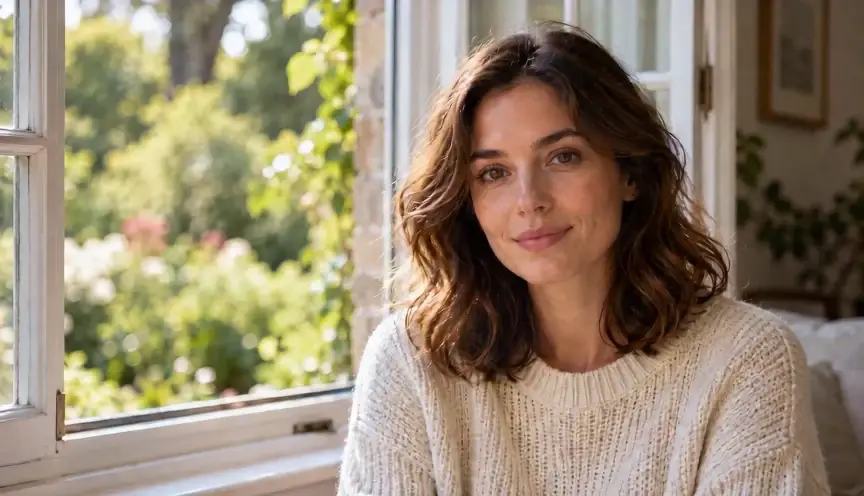
One small actionShe smiles and tilts her head slightly. The framing and the room hold.
Prompt used

She smiles gently and blinks once as a light breeze moves a few strands of her hair. Keep the camera still. Preserve her face, ivory sweater, window light and background. Subtle natural motion, no talking, no cuts or added text.

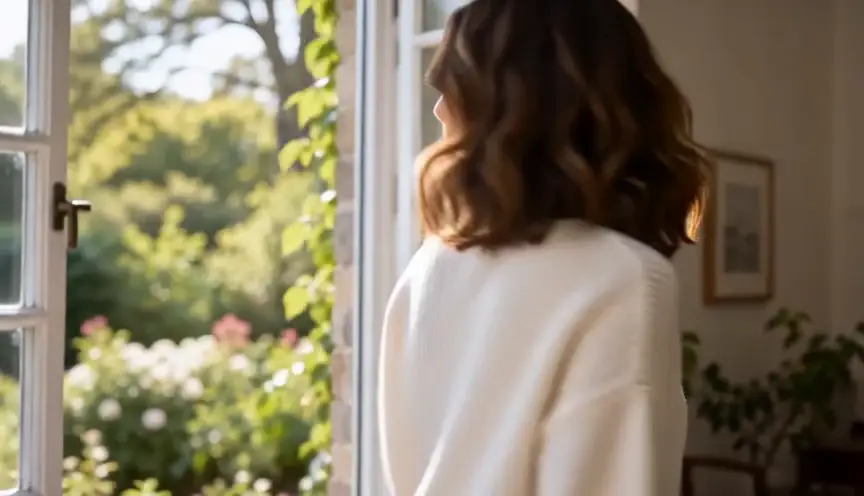
Seven things at onceShe stands, her face leaves the frame, the room changes and she ends with her back to us.
Prompt used

She laughs, turns her head to the left, stands up, waves at the camera and walks toward the window while the camera orbits around her and zooms in fast.

Step by step

  1. Pick a photo and upload it as the first frame

    Choose a sharp, well-lit photo with one clear subject and some room around it for movement. In the tool on this page, click "Choose image", drag a file in or paste it. PNG, JPG, WebP and GIF files under 10 MB work. Your photo becomes the opening shot, so anything wrong with it carries into the clip.

  2. Describe the motion, not the picture

    The model can already see the photo. In "How should it move?", say what moves and what the camera does, then what must stay the same if that matters. A vague prompt can still look good, as the first clip shows, but the model picks the shot for you. To get a specific camera move, name it.
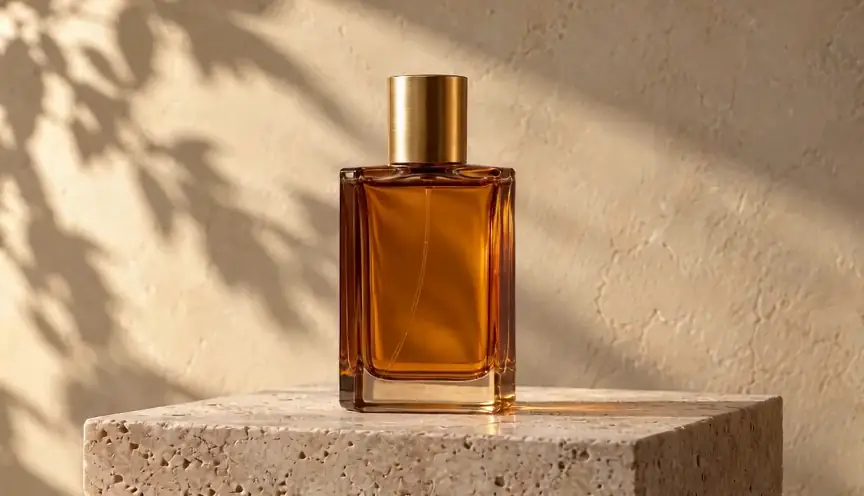
    Vague promptLooks fine. The model chose a slow push-in on its own.
    Prompt used

    Make this photo cinematic and dynamic.

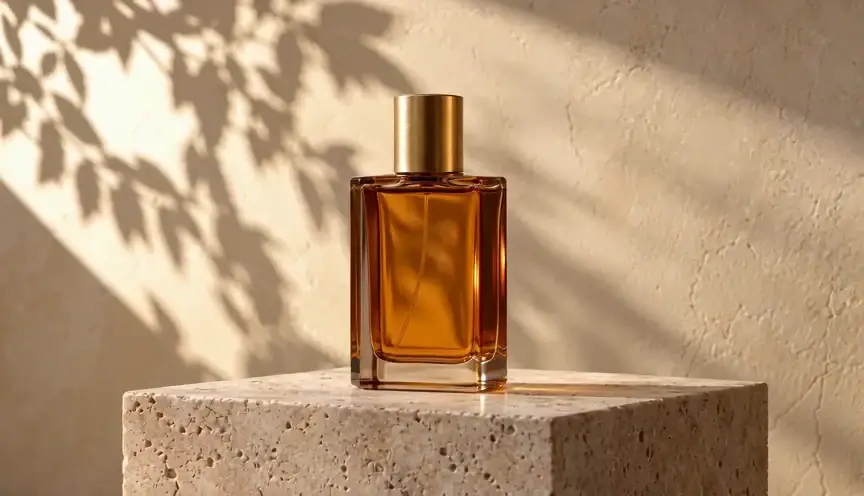
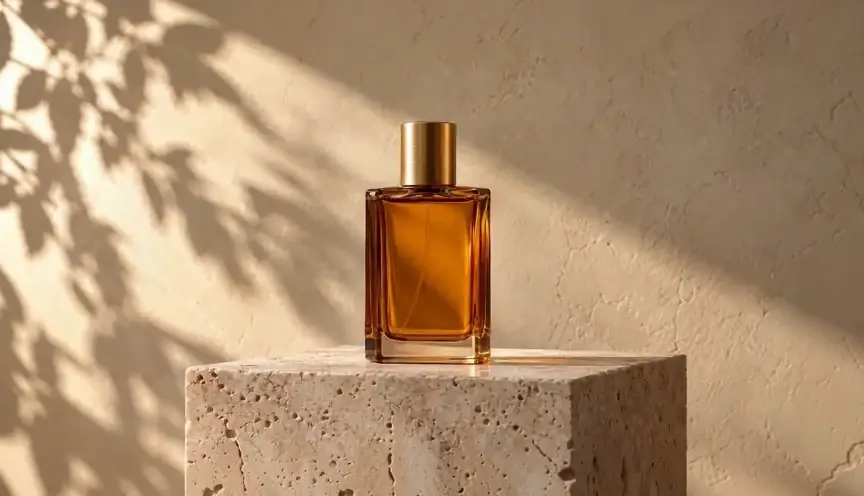
    Named camera moveThe camera arcs around the bottle, and the shadows on the wall shift with it.
    Prompt used

    Move the camera in a slow, gentle arc around the perfume bottle, revealing its right side. Keep the bottle and stone plinth stationary. Preserve the glass shape, golden cap, warm sunlight and beige background. One continuous shot, no cuts, no added objects or text.

  3. Ask for one main motion

    Pick one action or one camera move for each clip. The overloaded prompt at the top of this page asked for seven things, and the result lost the original shot. If you want more movement, get one working first and add the next in a new run. Several short clips are usually easier to control than one busy clip.

  4. Add limits only where they matter

    Sentences such as "keep the camera still" or "preserve the label" tell the model what must not change. We removed them from two prompts, and the clips stayed close to the originals. So limits are not a magic fix. They cost nothing to add, though, so use them when a face, a label or a painting style has to survive.
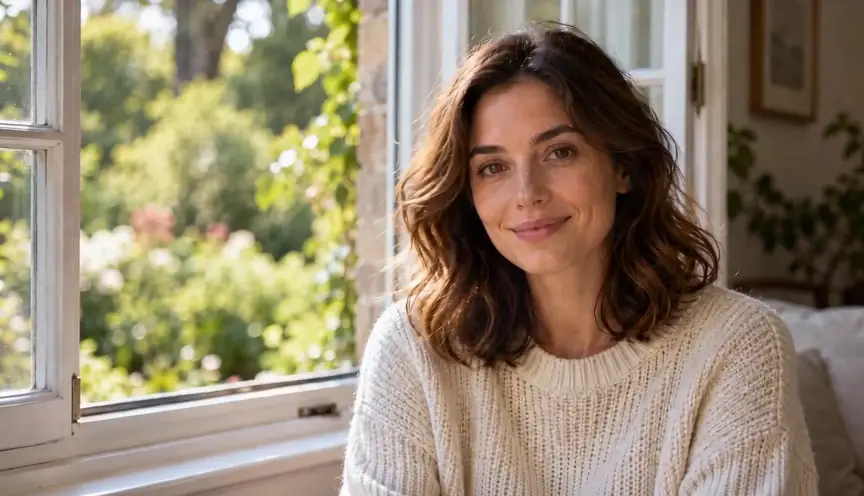
    Portrait, no limitsAlmost the same as the version at the top. The face and room held, with slight framing movement.
    Prompt used

    She smiles gently and blinks once as a light breeze moves a few strands of her hair.
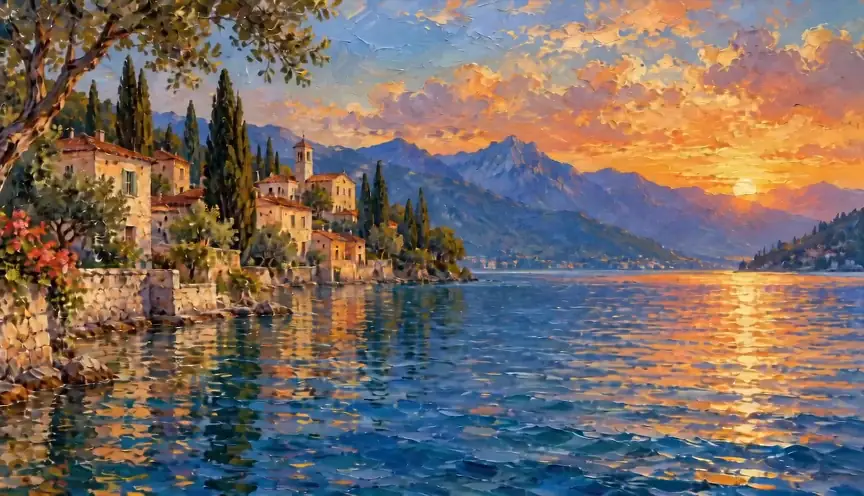
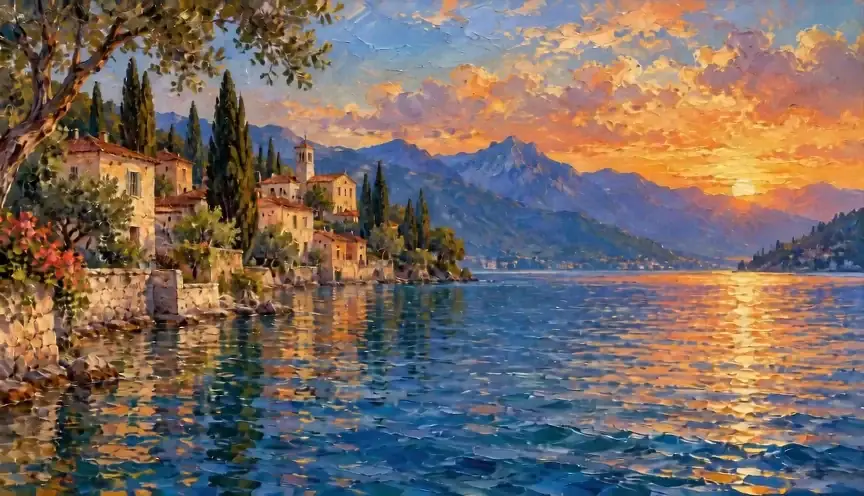
    Painting, no limitsThe water moved, the buildings held and it stayed an oil painting.
    Prompt used

    Let the lake water ripple gently and a few tree leaves sway.

  5. Test cheaply, then change one thing at a time

    Keep "Duration" at 4s and "Quality" at 480p, the cheapest clip at 80 credits. The "Generate video" button shows the exact cost first, and most clips take 1 to 3 minutes in the background. Each run differs, so one bad clip does not prove a bad prompt. When you revise, change only one thing.

  6. Finish the clip and set an ending if you need one

    When the motion looks right, raise the duration or quality. This is a new generation, so expect a different result rather than a sharper copy. If the ending matters, click "Open the full video tool" under the button, which carries your photo over, then use "Add last frame". Pick a frame from the same shot. Our clip ended close to the uploaded frame, not identical to it.

    First frame onlyThe clip ends wherever the arc happens to end.
    Prompt used

    Move the camera in a slow, gentle arc around the perfume bottle, revealing its right side. Keep the bottle and stone plinth stationary. Preserve the glass shape, golden cap, warm sunlight and beige background. One continuous shot, no cuts, no added objects or text.
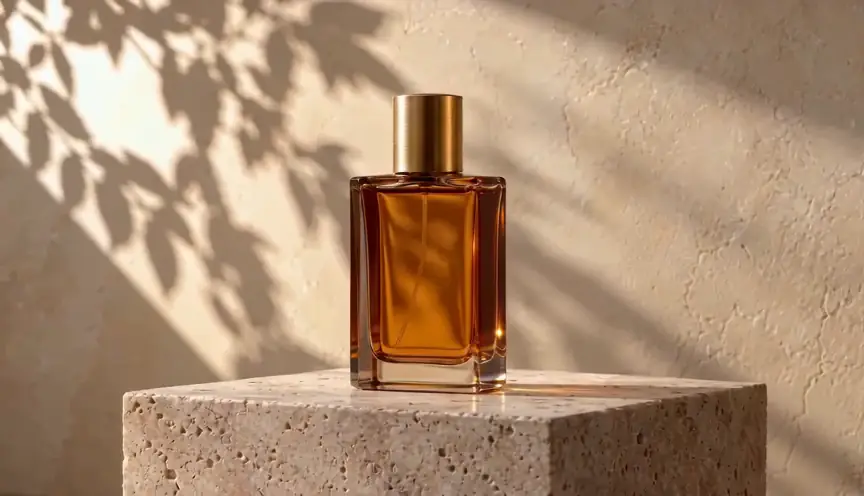
    First and last frameIt ends close to the uploaded frame. We took that frame from the clip beside it, so the two paths look alike.
    Prompt used

    Move the camera in a slow, gentle arc around the perfume bottle, from the first view to the last view. Keep the bottle and stone plinth stationary. One continuous shot, no cuts, no added objects or text.
Turn your photo into a video

Say what moves and what the camera does. One main motion works best.

Duration
Quality

Need a last frame, references or audio? Open the full video tool

More prompts to start from

Copy a prompt and replace the subject with yours, or click "Use example" to load the prompt, photo and settings into the tool above. The portrait and orbit prompts earlier on this page work the same way.

Product: straight push-inThe camera moves toward the bottle, which stays in place.
Prompt used

Move the camera slowly straight toward the perfume bottle. Keep the bottle and stone plinth stationary. Preserve the glass shape, golden cap, warm sunlight and beige background. No orbit or sideways movement. One continuous shot, no cuts, no added objects or text.

Painting: subtle movementThe water ripples and the leaves sway, while the village and brush style hold.
Prompt used

Let the lake water ripple gently and a few tree leaves sway in a soft breeze. Keep the camera, village buildings and mountains still. Preserve the original oil-painting brushstrokes, colors and composition throughout. Do not turn the painting into live action or 3D. One continuous shot, no cuts or added text.

If the result isn't right

  • The face changes or warps. Use a sharper photo with the face large in the frame, ask for a smaller action and keep the camera still. Generate it again before rewriting, because each run differs.
  • The subject barely moves. Name the subject and give it a visible action, such as "she turns her head to the left", rather than a general word like "dynamic".
  • The camera drifts when you wanted it still. Say "keep the camera still" in the prompt and remove any other camera instructions.
  • Extra objects or text appear. Add "no added objects or text" and remove style words that invite new elements. A simpler background also leaves the model less to invent.
  • The clip falls apart near the end. Shorten the duration or simplify the action. If you know how it should end, add a last frame from the same shot.
  • The upload or generation won't start. Use a PNG, JPG, WebP or GIF under 10 MB. If you don't have enough credits, the tool shows how to get more. 720p needs a Pro plan and 1080p needs Ultra.

What a clip costs

Cost is credits per second multiplied by the duration. Audio is off in our examples.

ResolutionCredits per second4 s5 s15 sPlan needed
480p2080100300Any
720p50200250750Pro
1080p903604501350Ultra

The cheapest clip costs 80 credits, and a new account's starter credits may not cover it. Check the amount on the button before you generate.

How we made these clips. Each clip is one unretouched run of the prompt beside it, with no retries, at 480p, 5 seconds and 16:9, with no audio. The input images are fictional and AI-generated. We used Seedance 2 Fast; the tool on this page uses Seedance 2, so your output will differ. One run shows what happened once, not a rule.

Questions

What should I write in an image-to-video prompt?

Describe what moves and what the camera does. If something must not change, say so, then add "one continuous shot, no cuts" if that matters. Don't repeat what is already visible in the photo. One main motion per clip is easier to control.

How many credits does a video cost?

480p costs 20 credits per second, 720p costs 50 and 1080p costs 90. The cheapest clip, 4 seconds at 480p, costs 80 credits. The button shows the exact cost before you generate.

Why do I get a different result with the same prompt?

Each run is a new generation, so the same photo and prompt can produce different motion. Judge a prompt by more than one run, and raising the quality creates a new clip rather than improving the one you have.

What is the difference between a first frame and a reference image?

A first frame is the opening shot of your video. In the full video tool, images on the "References" tab guide the look without being the opening shot, and you can add up to 9. Use a first frame when you want this exact photo to move.

Can I turn any photo of a person into a video?

Only use photos you have the right to use, and don't animate real people without their permission. Generated content must also follow ImgPilot's Terms of Service, so some images and requests may be refused.

Should I use image to video or text to video?

Use "Image to video" when the subject, framing or product must match a picture you already have. Use "Text to video" in the full video tool when you have no image and want the model to create the whole scene from your description.