
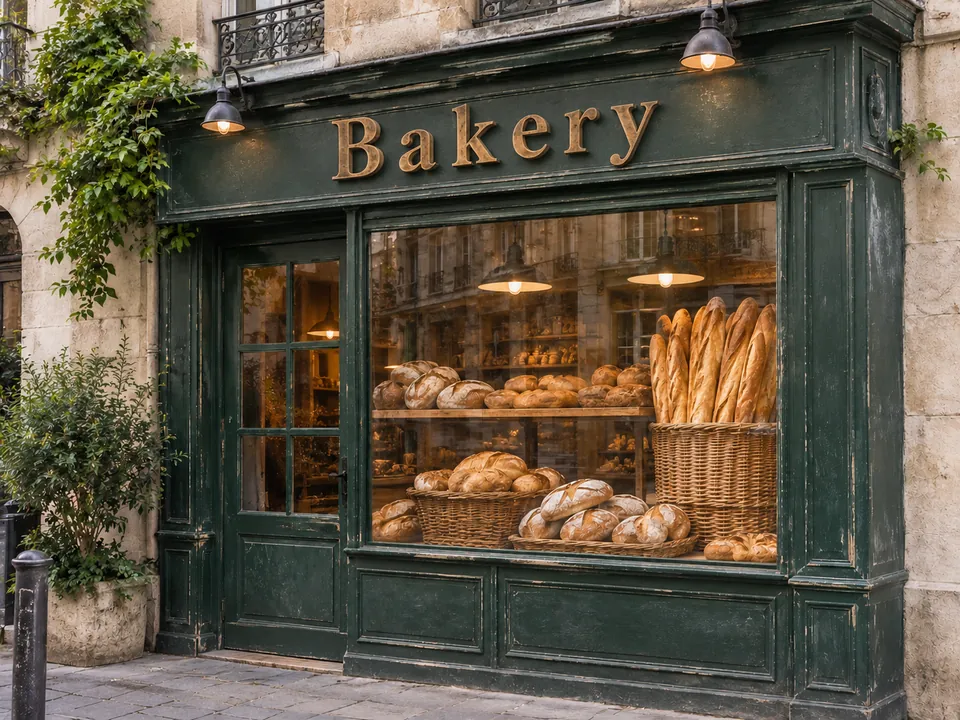




Step by step
Upload your image
Click the image area ("Choose image"), drag a file in, or paste it. The tool takes one JPG, PNG or WebP image up to 10 MB. You need an ImgPilot account to upload and edit.
Quote the old and new text
In "What should change?", describe the change in plain words and put both the current text and the new text in quotation marks, for example: Change the sign text "OPEN" to "CLOSED", keep the same font and color. One change per edit gives the cleanest result.
Pick a model
Choose a model from the picker next to the prompt: GPT Image 2 (the default), GPT Image 2.5 · Sunburst, GPT Image 2.5 · Flare, Nano Banana Pro, Nano Banana 2 or Seedream 5.0 Pro. Models don't handle lettering equally: in one run each of the typo fix below, two models corrected it and Seedream 5.0 Pro left it unchanged. When the spelling comes out wrong, run the edit again with another model.
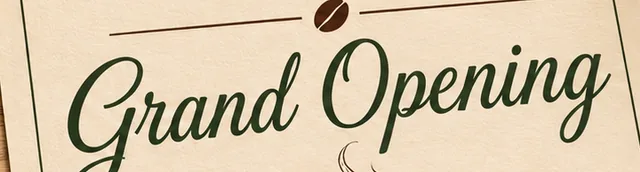
GPT Image 2Typo fixed 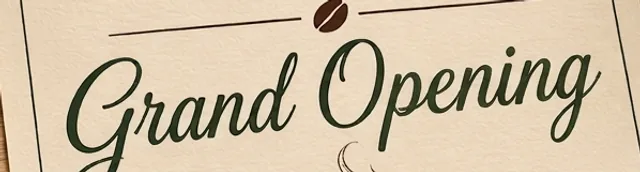
Nano Banana ProTypo fixed 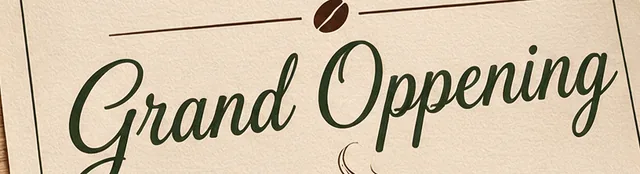
Seedream 5.0 ProStill reads Grand Oppening Check the cost and send
The "Edit text" button shows the credit cost before you send. Each run uses one model and costs credits, so to compare models, run the same prompt again with another one. For several reference images or up to three models side by side, use "Open in Chat to Image" under the button; it carries your image over.
Compare before and after
When the edit finishes, the image area turns into a before/after slider. Drag it across the text to check spelling, letter shapes and the background around them. The result keeps the original framing and is generated at 1K, not at the size you uploaded.
Download or keep editing
Click "Download" to save the image, or "Edit this result" to use it as the input for one more change, such as fixing a second word or changing a color.