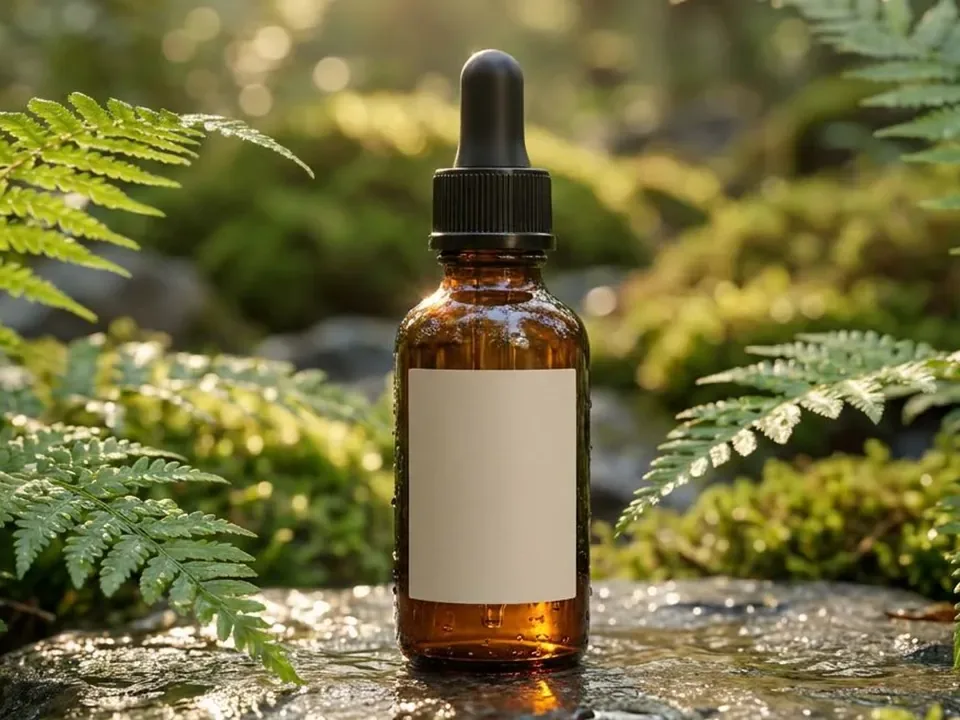
Step by step
Open the editor and upload your photo
Open the AI image editor and click "Upload image", or the + in the message box. It takes PNG, JPG, WebP or GIF files up to 10 MB. You need an ImgPilot account to upload and edit.
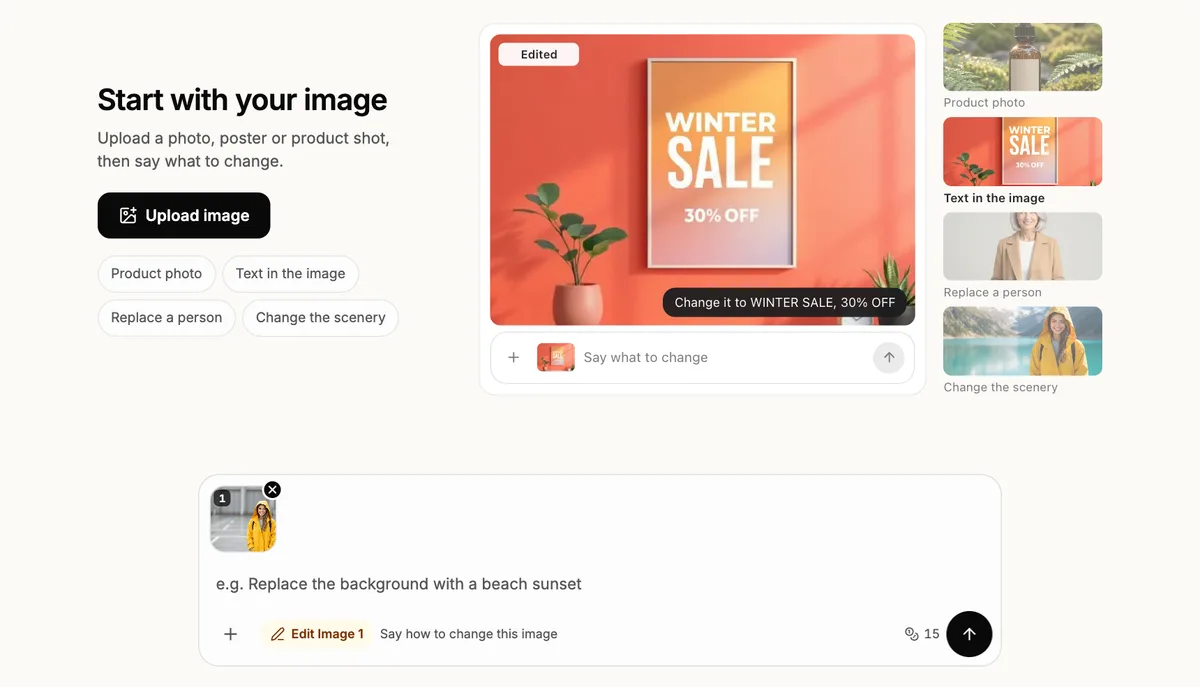
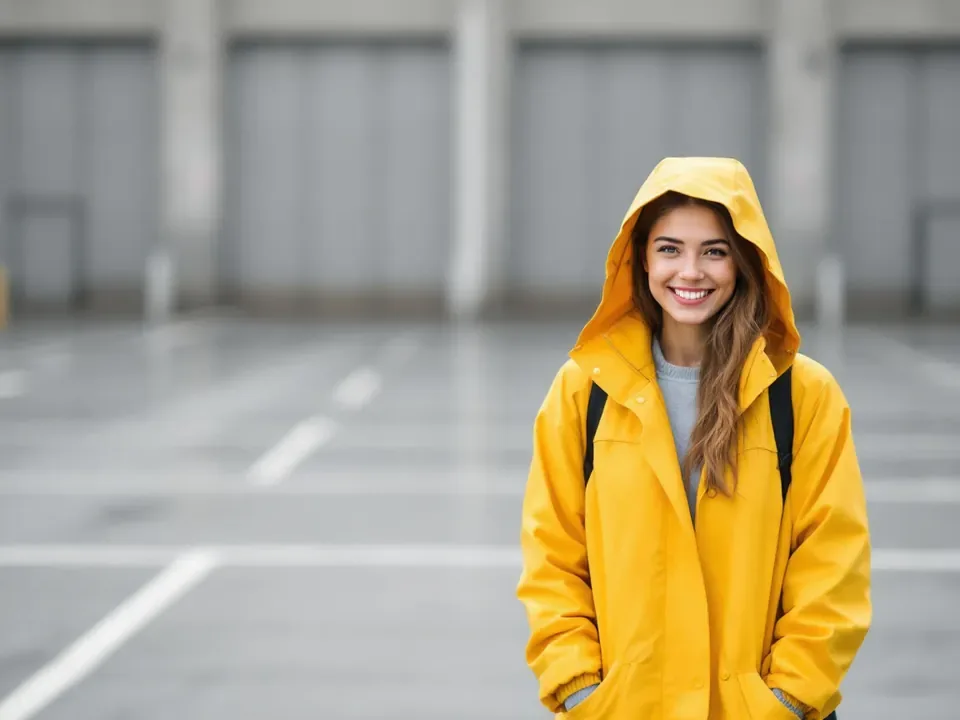
UploadThe photo appears in the message box as Image 1 Type the new background
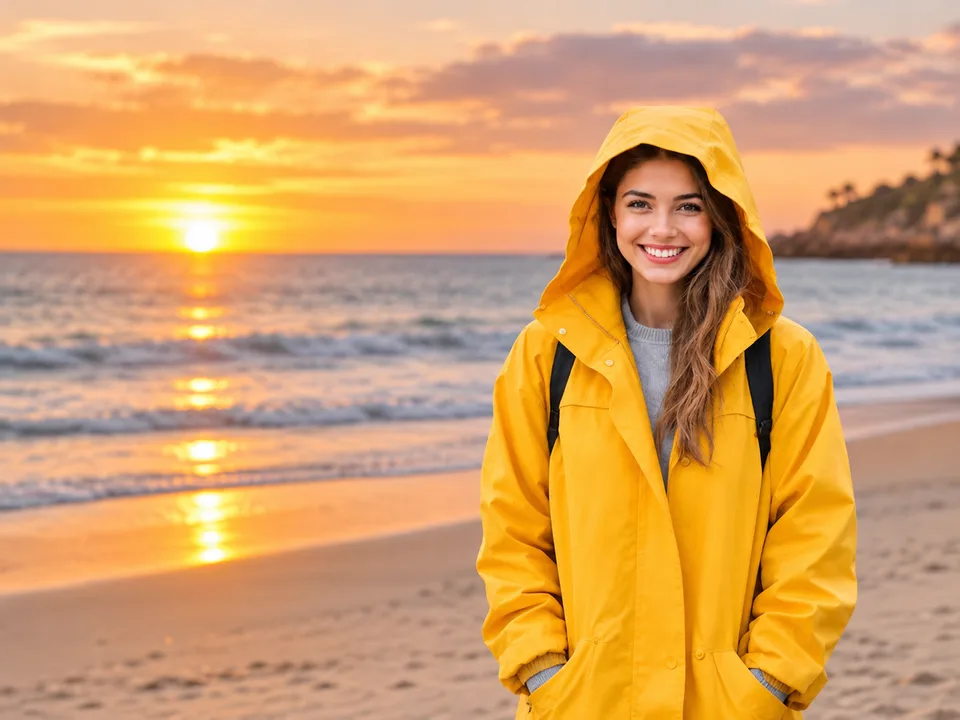
Describe the place in plain words, for example "Change the background to a beach at sunset". Name the time of day or the light if it matters. If the subject must not change at all, add "keep the person exactly the same".
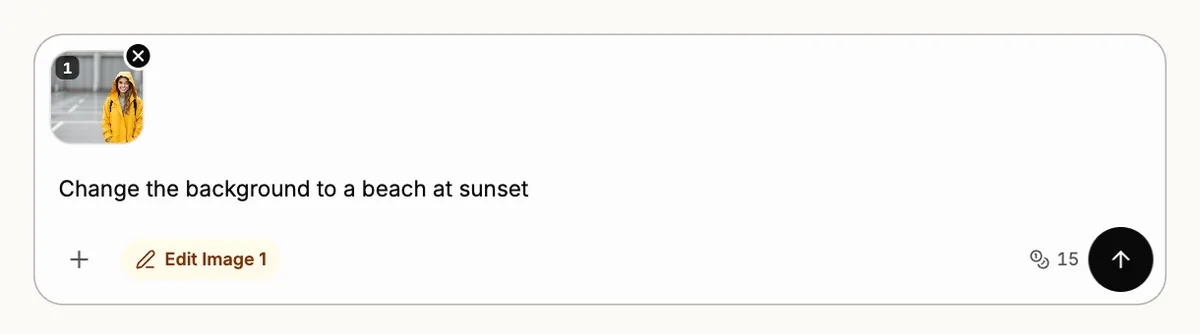
PromptOne sentence is enough Check the cost and send
ImgPilot shows the credit cost next to the send button before you press it. The default model is GPT Image 2.5 · Sunburst. You can pick another model, or compare up to three models, in the model menu above the chat. One background change usually takes one to two minutes; the beach edit in this guide took 84 seconds.
Compare the result
The edited photo appears in the chat. The side panel keeps both the edited photo and your original upload. Check the edges of hair and clothes, and check that the light on the subject matches the new place. To download the edited photo, click the expand icon ("View larger") and then "Download".
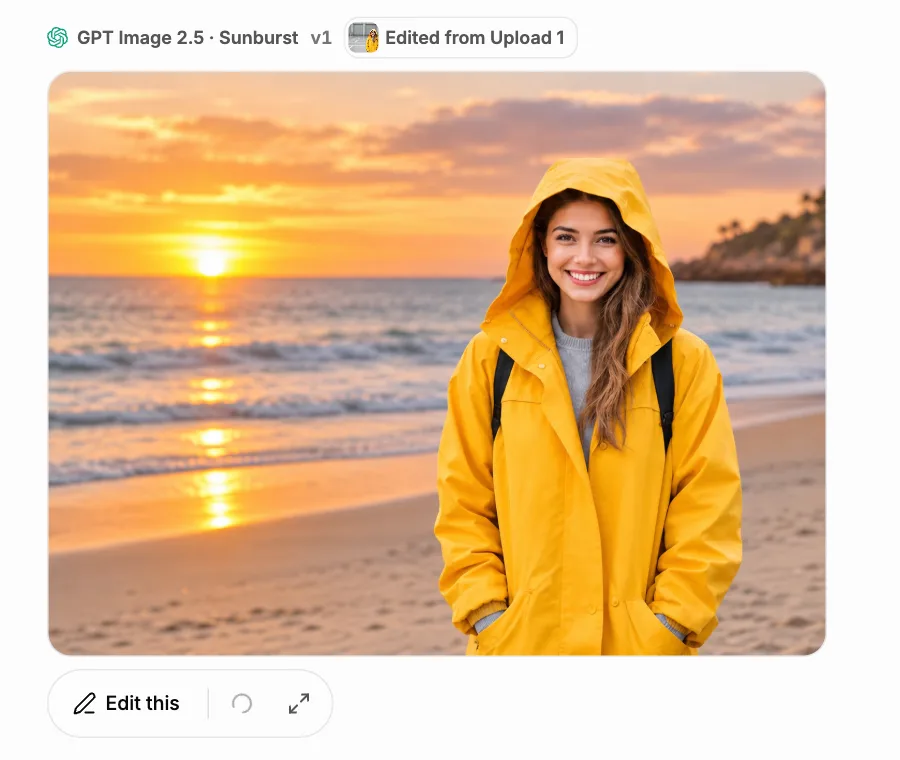
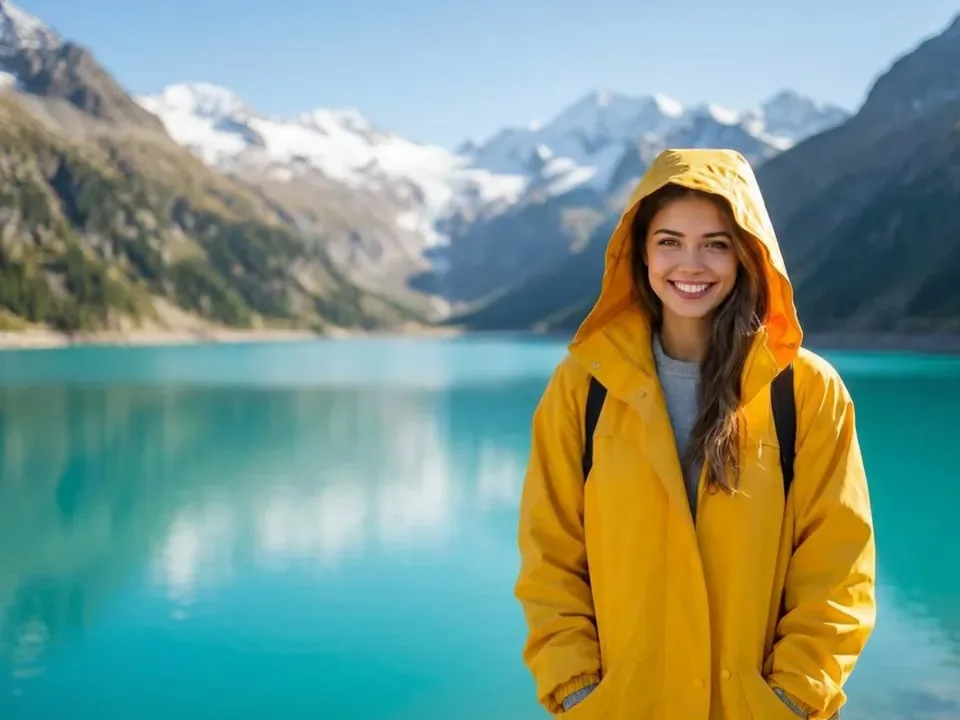
ResultSame woman, same raincoat, new place Keep editing in the same chat
If the edited photo is close but not right, type the next change in the same chat, such as "make the sky less orange" or "add a few clouds". The "Continue from v1" button uses the last edited photo as the starting point, so you fix only what is left instead of starting over.