Step by step
Open the editor and upload your photo
Open the AI image editor and click "Upload image", or the + in the message box. It takes PNG, JPG, WebP or GIF files up to 10 MB. You need an ImgPilot account to upload and edit.
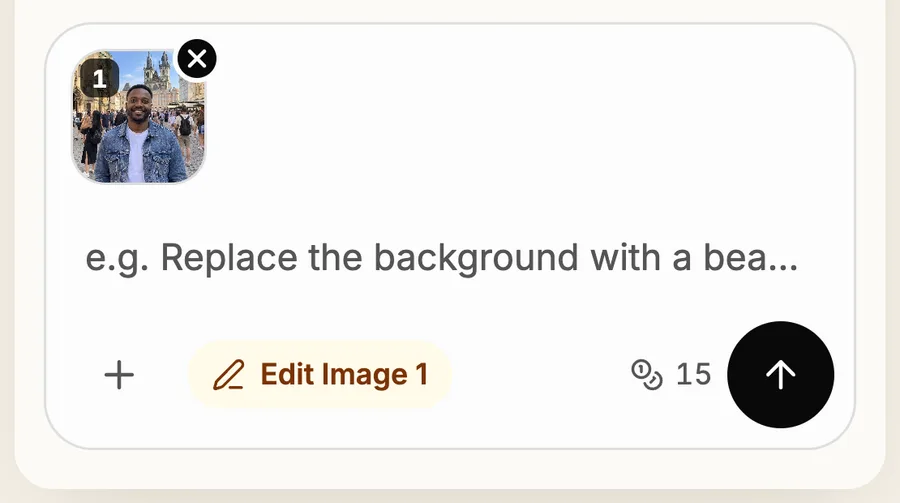
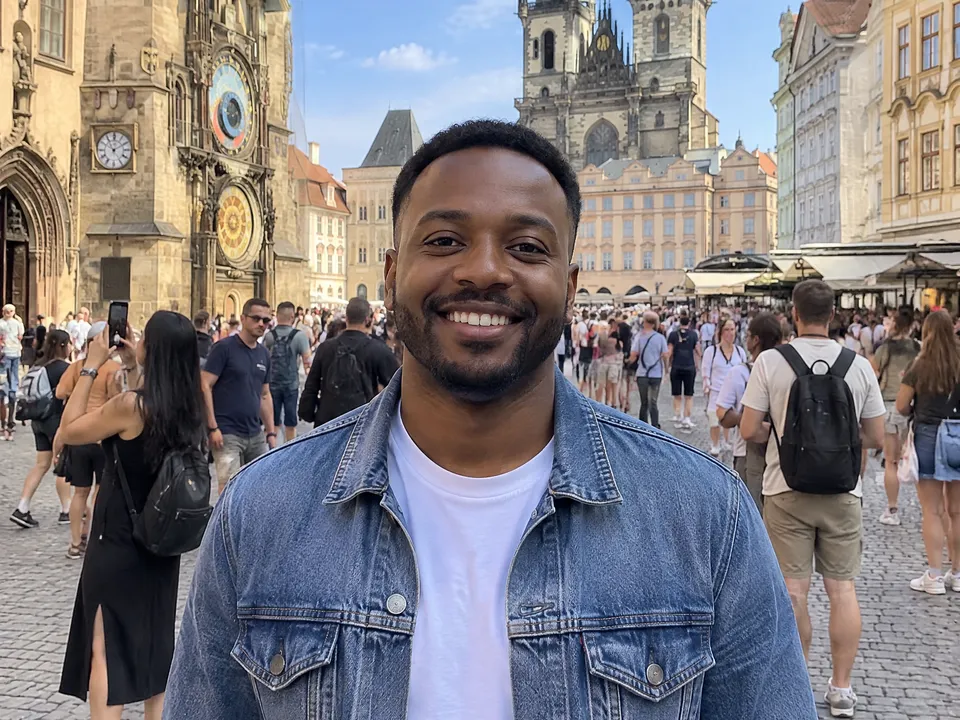
UploadThe photo appears in the message box as Image 1 Type who should go
Type "Remove the people in the background". To remove only some people, name them, for example "Remove the man on the left". If the person you want to keep changes, add "keep the person in front exactly the same".
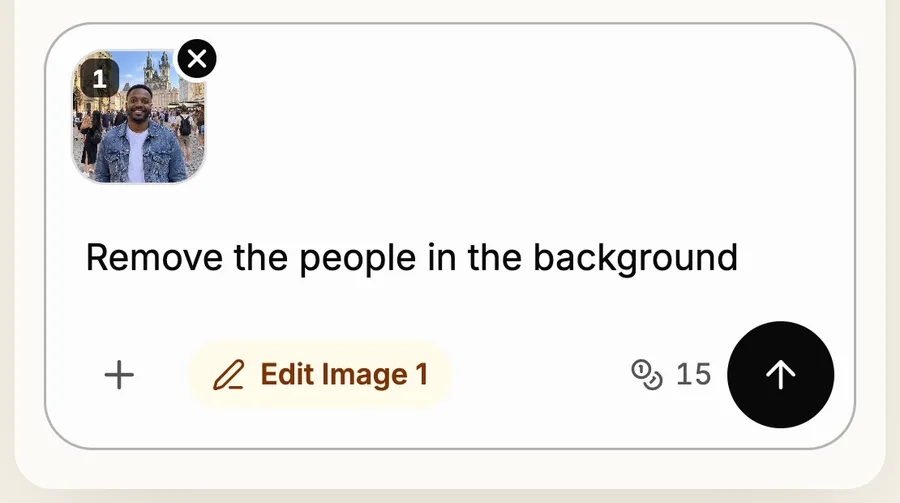
PromptOne sentence is enough Check the cost and send
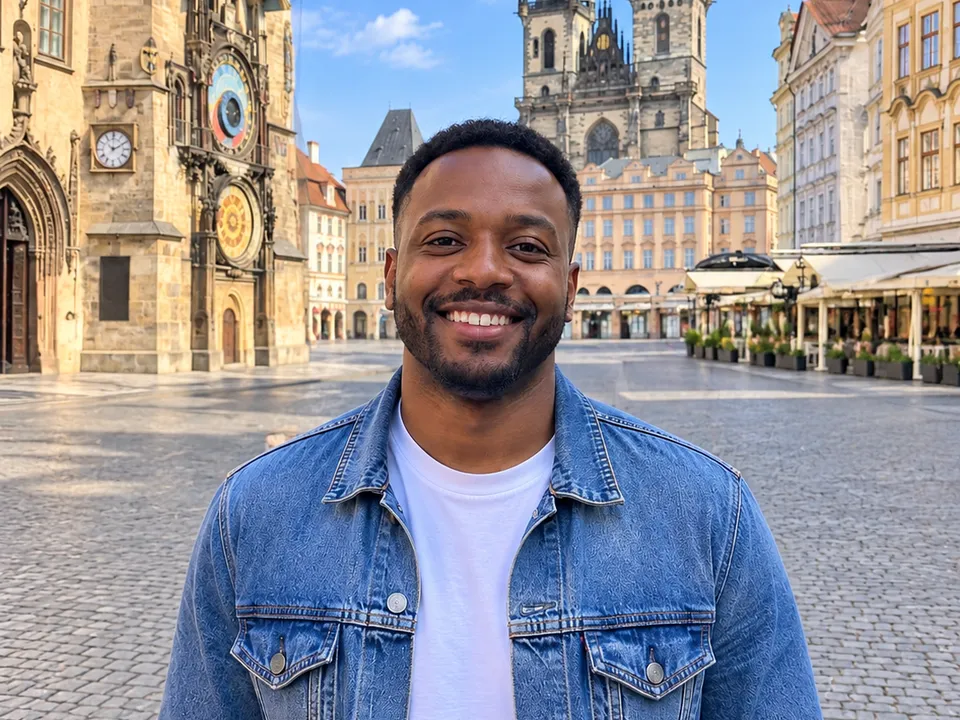
ImgPilot shows the credit cost next to the send button before you press it. The default model is GPT Image 2.5 · Sunburst. You can pick another model, or compare up to three models, in the model menu above the chat. Removing people usually takes about one to two minutes; the city-square edit in this guide took 66 seconds.
Compare the result
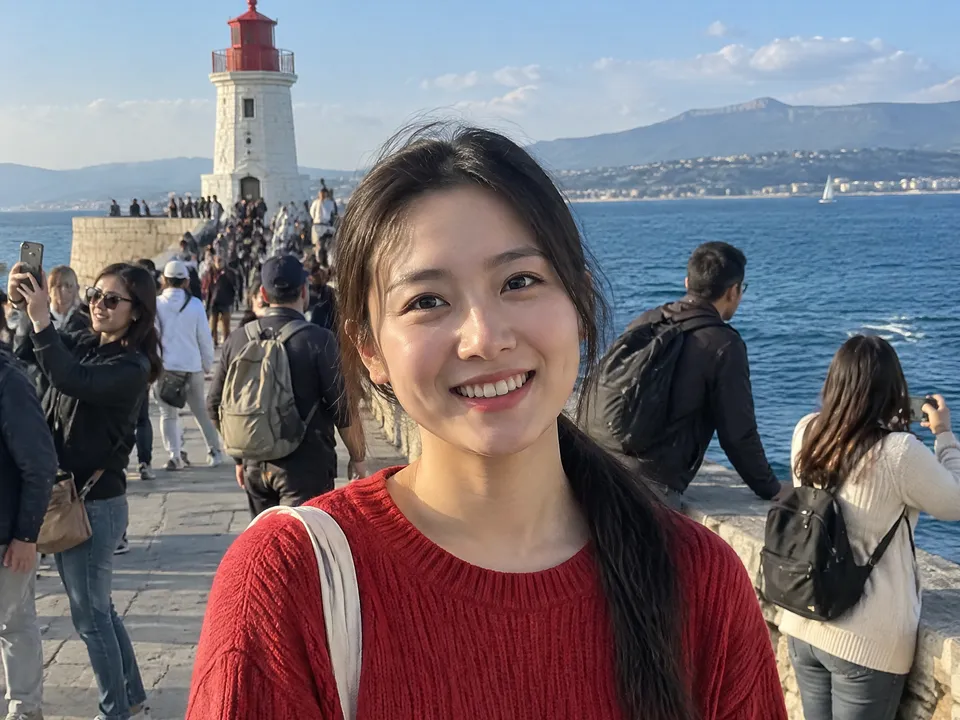
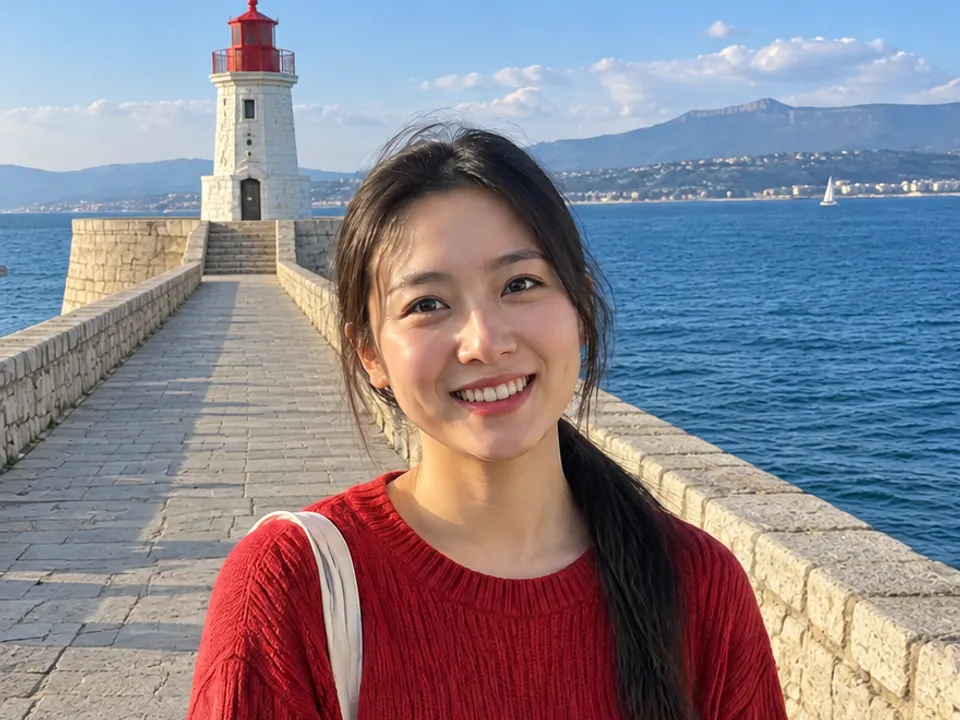
The edited photo appears in the chat, and the side panel keeps your original upload. Check the spots where people stood: the ground, walls and railings there should look natural. To download the edited photo, click the expand icon ("View larger") and then "Download".
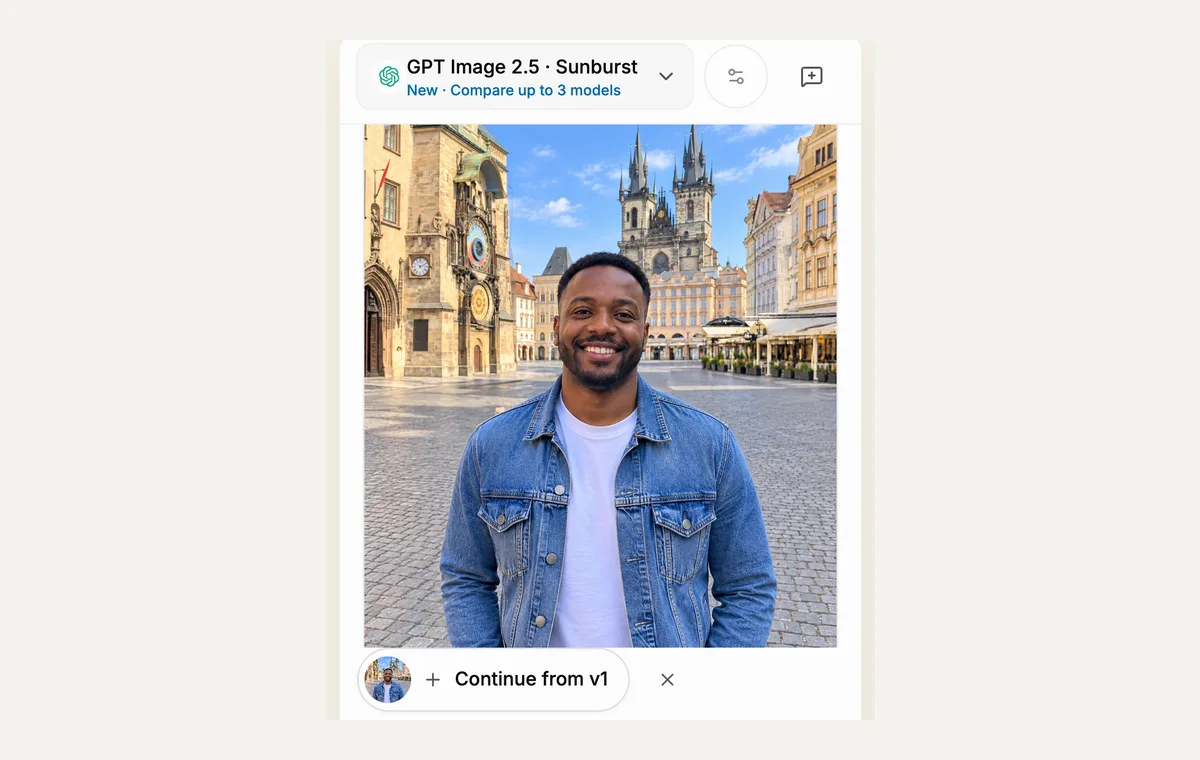
ResultSame man, same square, no tourists Fix what is left in the same chat
If one person or a shadow is left, type only that fix, such as "Remove the woman behind the railing". The "Continue from v1" button uses the last edited photo as the starting point, so you don't start over.